Guide · 03
Your workspace
Arrange the Practice page for each kind of work, and switch between your setups in one click.
The middle of the Practice page is made of areas, and each area shows one panel. How they are arranged is a layout, and each layout is a tab. Build as many as you need (up to 20): they are saved to your account and follow you on every computer.
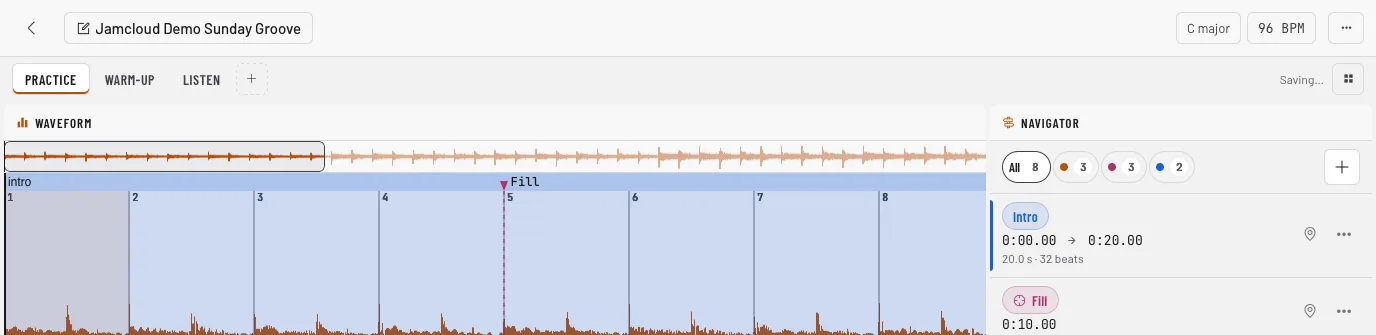
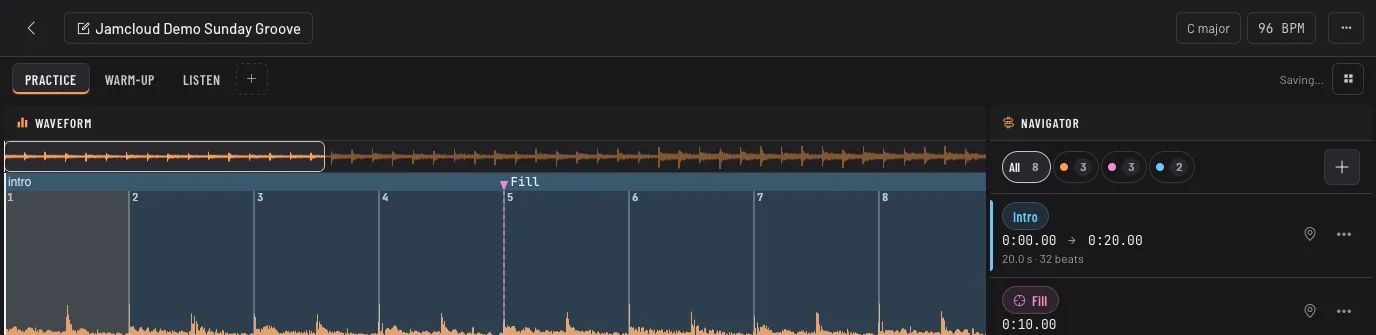
Start from a ready-made layout
Section titled “Start from a ready-made layout”A first visit opens four tabs: Transcribe, Analyze, Practice and Listen. + at the end of the tabs adds any of the layouts below, sorted by what you want to do, or a blank layout to build from scratch.
Play
- Warm-up: tuner, metronome and board. To get ready before you play, no track needed.
- Practice: the waveform and the Navigator (your loops, markers and sections). To play along.
- Drill: waveform, Navigator, sound console and metronome. To slow down and repeat a hard passage.
Learn
- Chords: waveform, metronome and a big chord grid. To learn a song’s harmony while you play along.
- Transcribe: waveform, Navigator, tempo, chord grid and track info. To map out a song.
- Analyze: spectrogram, waveform, spectrum, chord grid and tempo. To train your ear and check the sound.
Create
- Mix: waveform, stems mixer and sound console. To play along with the song minus your part.
Together
- Rehearsal: waveform, Navigator, stems mixer and queue. To rehearse with a band: mute your part, follow the structure, keep the setlist.
- Lesson: a big board next to the waveform and the Navigator. To give or take a lesson.
Library
- Listen: library, waveform, spectrum and queue. To listen through a queue.
- Deliver: waveform, track info and export. To tag, cut and export.
Tabs made from the former Annotate and Queue layouts keep working, but they are no longer offered.
Change it
Section titled “Change it”Open Layout options › Edit layout. Each area can then be split to the right or below, closed, or switched to another panel by clicking its name. Drag the line between two areas to resize them, at any time. Click Done or press Esc when it suits you; every change is saved as you go.
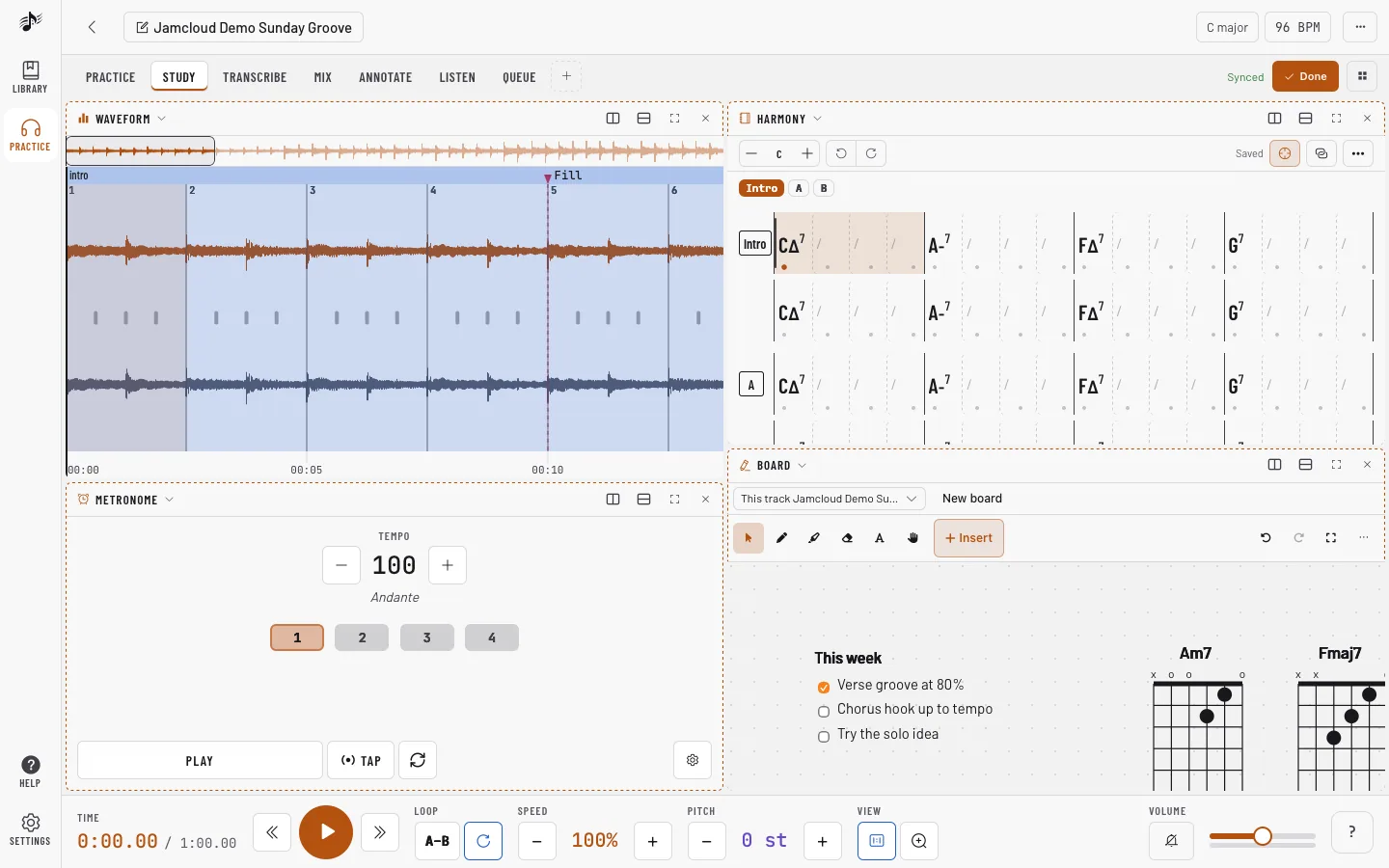
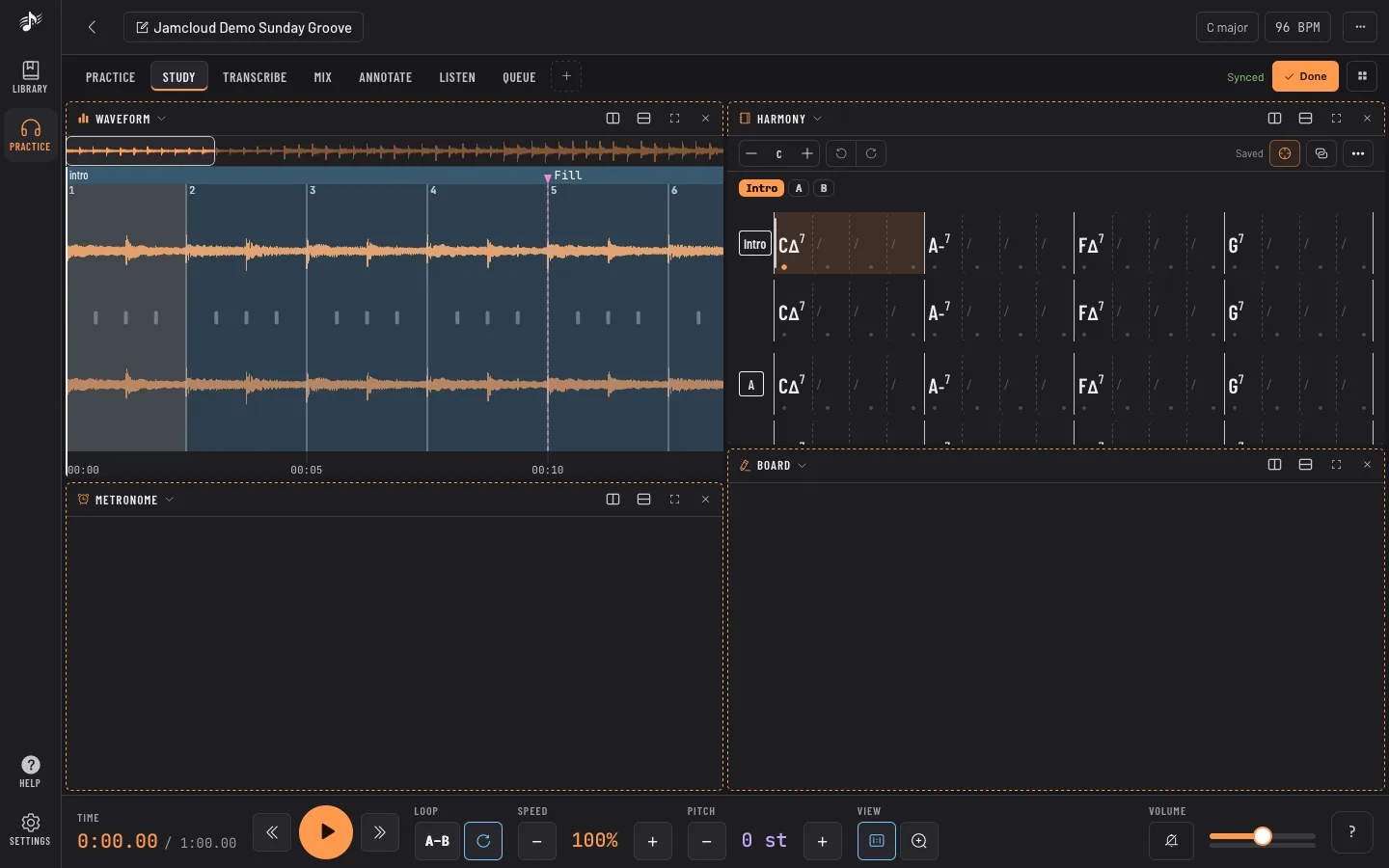
Ctrl + Space maximizes the area under the pointer, and brings the others back. Layout options also renames, duplicates, reorders, resets and deletes tabs.
The panels
Section titled “The panels”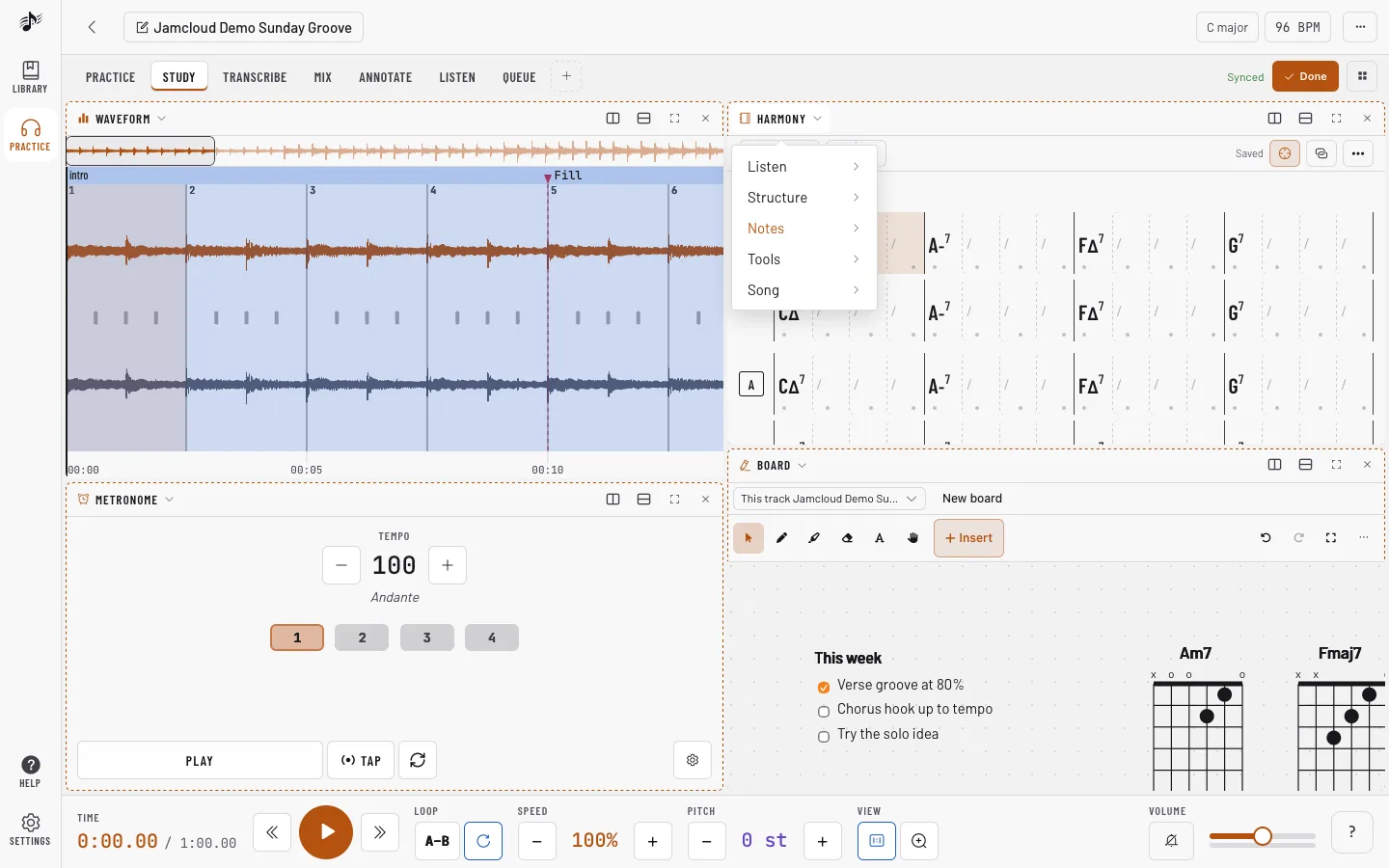
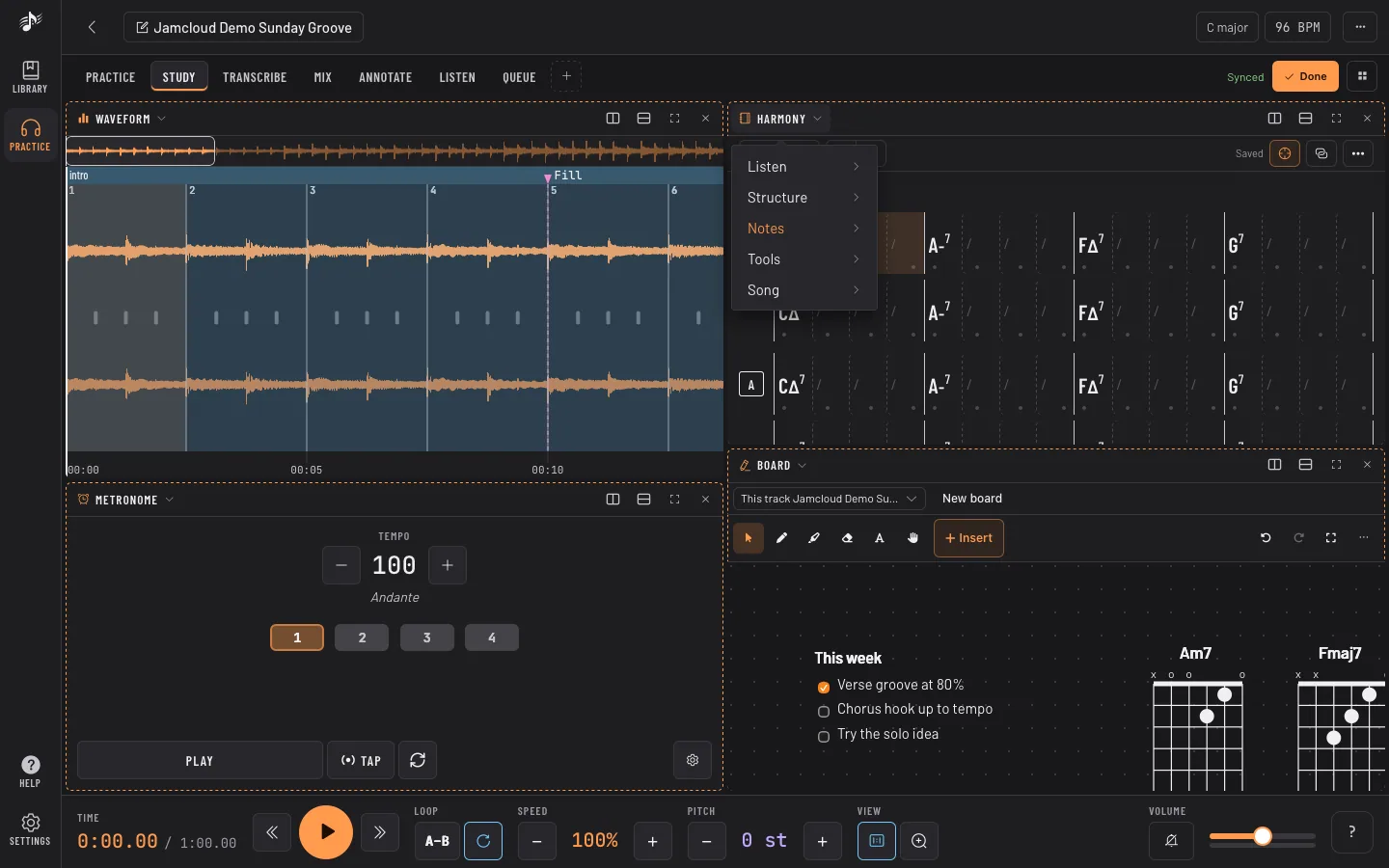
- Listen: Waveform, Spectrogram, Mixer (stems), Sound (equalizer, compressor…), Spectrum, Queue.
- Structure: Navigator (markers, sections and loops together), Tempo (the beat map).
- Notes: Harmony (chord grid, score, tab), Board (shared whiteboard).
- Tools: Tuner, Metronome.
- Track: Track info, Library, Export, My computer (Local library).
Any mix works: every panel follows the same track and the same play head, and you can show the same panel twice.
Panels you never use can be turned off in Settings › Panels: they leave the panel list and the phone panel bar. An area that already shows one says it is off, and comes back as it was when you turn the panel on again. The Waveform always stays on. A panel your administrator turned off for everyone is marked Turned off by the administrator there and can’t be turned on. A panel your plan doesn’t include, built-in ones included, is marked Not in your plan and stays out of the panel list. The panels that come with every account (Mixer, Sound, Export and Navigator among them) are listed first, under Built in.
Ideas of setups
Section titled “Ideas of setups”- Learning a solo: a big waveform with the Navigator (your loops) and a small Metronome; slow down, then speed up step by step.
- Teaching: Harmony next to a Board in a shared workspace, so you and your student write on the same page.
- Rehearsing with the band: Mixer to mute your instrument, Navigator to jump to the bridge.
- Transcribing: Spectrogram under the waveform, Navigator and Harmony on the side, Mixer to solo the instrument you write down. See Transcribe a song.
On a phone, the page shows one panel at a time instead: see Phone, settings and shortcuts.
The Listen and Queue tabs play a queue of tracks, and the Queue panel fits in any layout: see Listen.