Guide · 06
Harmony, score and board
Follow the chords bar by bar, read a score or a tab in time with the audio, and write together on a shared board.
Chord grid
Section titled “Chord grid”The Harmony panel shows the chords like a page of a real book, and lights up the bar being played. Create a grid from a form (AABA, blues, verse / chorus…), then type the chords. Transpose it in one click.
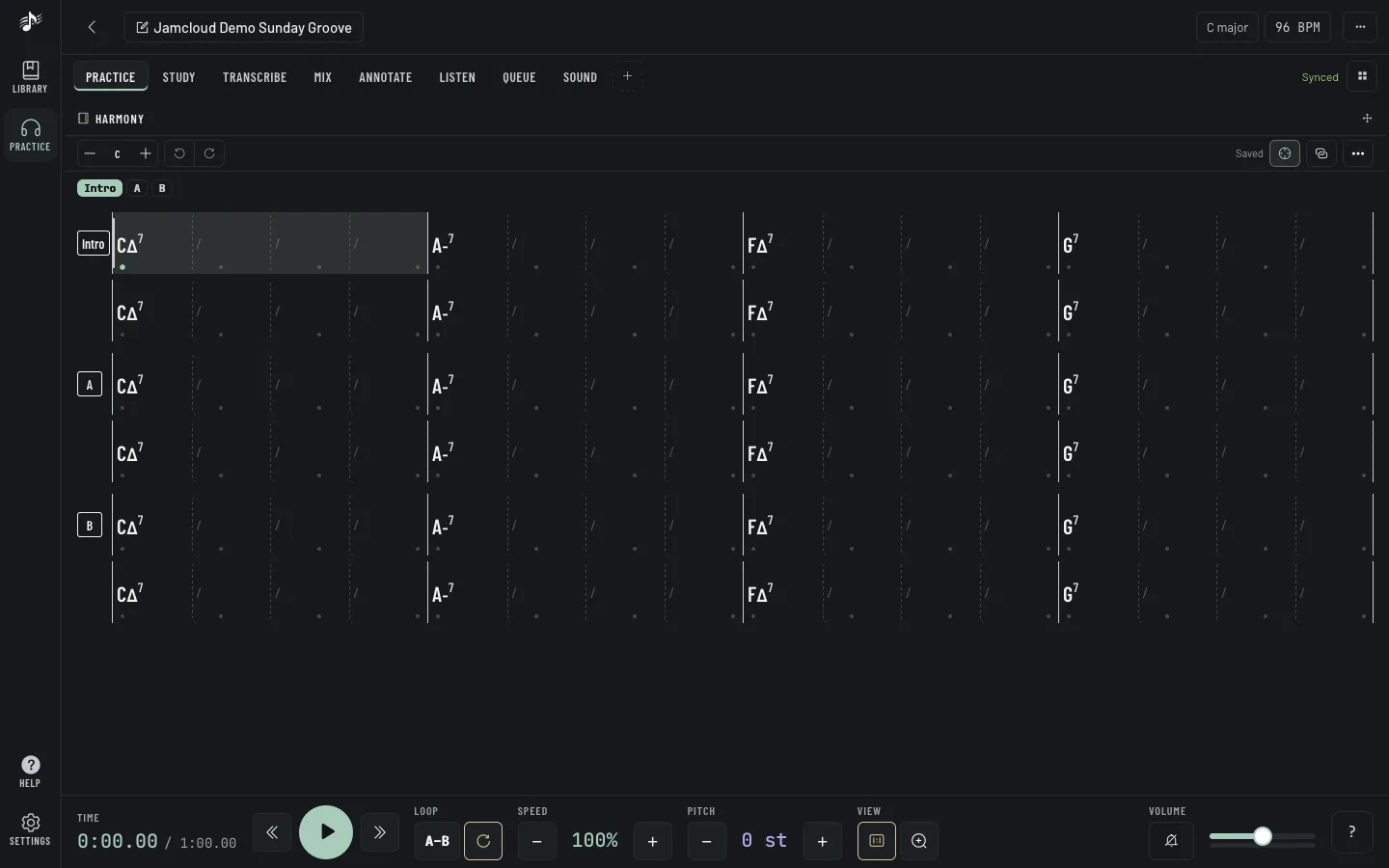
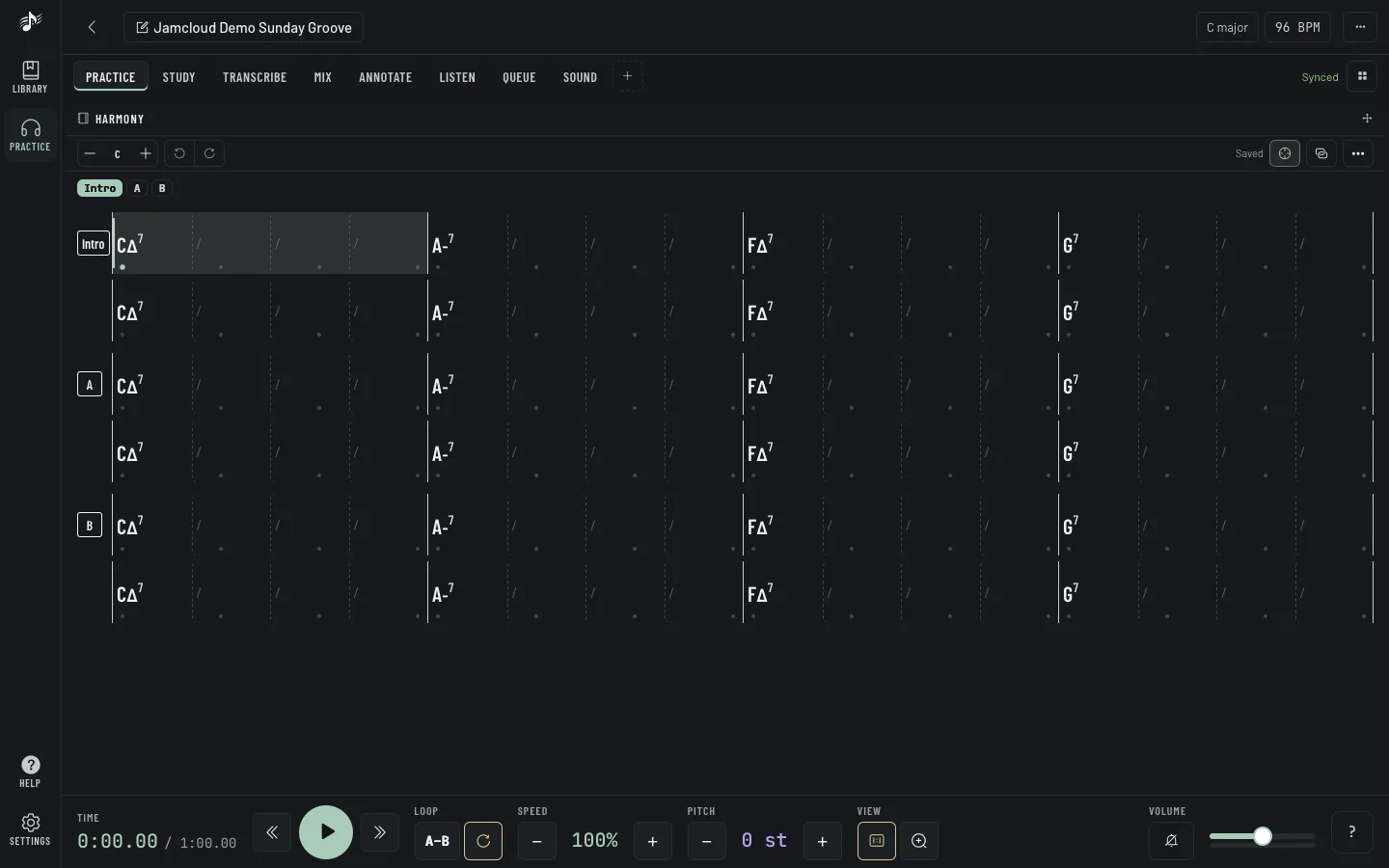
Detect chords from the audio (in the panel’s ⋯ menu, or on an empty panel) writes a first grid for you: JamCloud listens to the track, recognizes the major and minor chords and places them on the bars, split by the track’s sections. It is a draft to check by ear and correct like any grid; if a grid already exists you are asked first, and Undo brings it back. Chords are placed on the beat map, so analyze the track (or tap along) first.
The grid follows the track’s beat map. If it is a bar off, the Sync menu sets where bar 1 starts, moves the grid by a bar or a beat, or lets you tap along on a free-tempo recording.
To loop or copy a passage, click its first bar and Shift+click its last one (or Shift+arrows). L (or the loop button) loops those bars; ⌘/Ctrl+C, X and V copy, cut and paste them over the following bars.
Score and tab
Section titled “Score and tab”More › Import a score… attaches a Guitar Pro, MusicXML, MuseScore, MIDI or similar file. Switch the panel between Grid, Score and Tab: the cursor follows playback, and clicking a note moves the player there. The score can also fill the chord grid.
Importing a score needs the Score import permission of the workspace owner’s plan (if it is off, the import is hidden), and the file counts toward the owner’s storage.
On a tablet or a computer you can write a score yourself, or edit an imported one. On a phone, scores are read only.
Click Edit: one row of tools holds Mode, Duration, Notes, Symbols (rest, tie, chord name), Tab (string and fret), Bar, Bars and Edit (undo, delete); it scrolls sideways in a small panel. The keyboard button lists the shortcuts.
- Select (the default): click anywhere near a bar to put the cursor on the closest beat; on a tab, the string under the pointer is picked, so you can type the fret right away.
- Write (N): click a line or a space of the staff to write that note; a preview shows the note and its name before you click. ⌥/Alt+click adds it to the chord.
- Bars: Shift+click, Shift+arrows or a drag select bars. Copy, cut, paste over the bars from the cursor, insert the copied bars, duplicate them, or press L to loop them. Copied bars keep every instrument, so a whole verse or chorus can be repeated in one paste.
Outside editing, drag over bars of the score or the tab to loop them; a click elsewhere stops that loop.
The Board is a whiteboard: text, freehand drawing, staves, tabs, chord diagrams, fretboards and chord progressions. Each track has its own board, and the workspace can have free boards (“Modes lesson”, “Setlist ideas”).
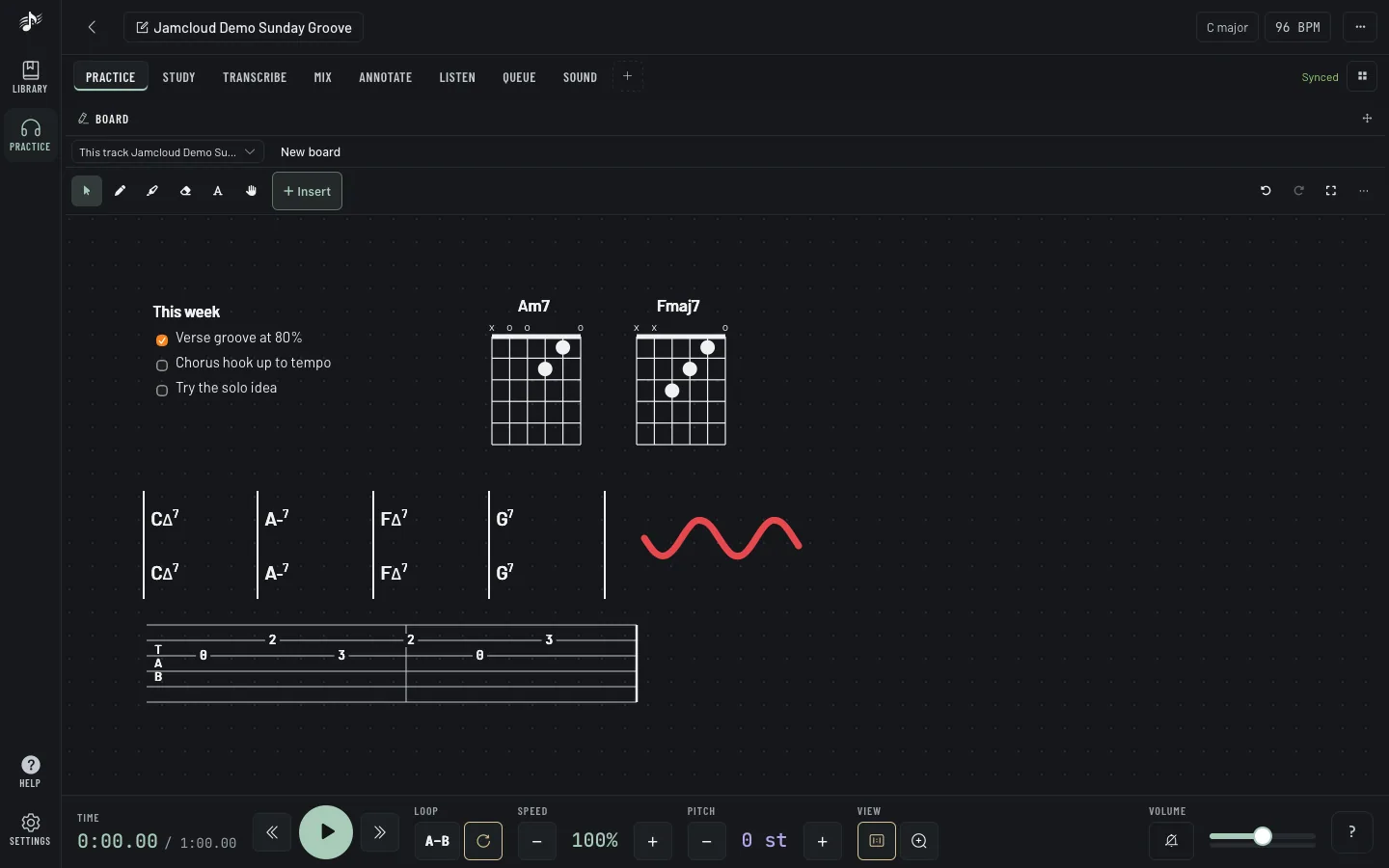
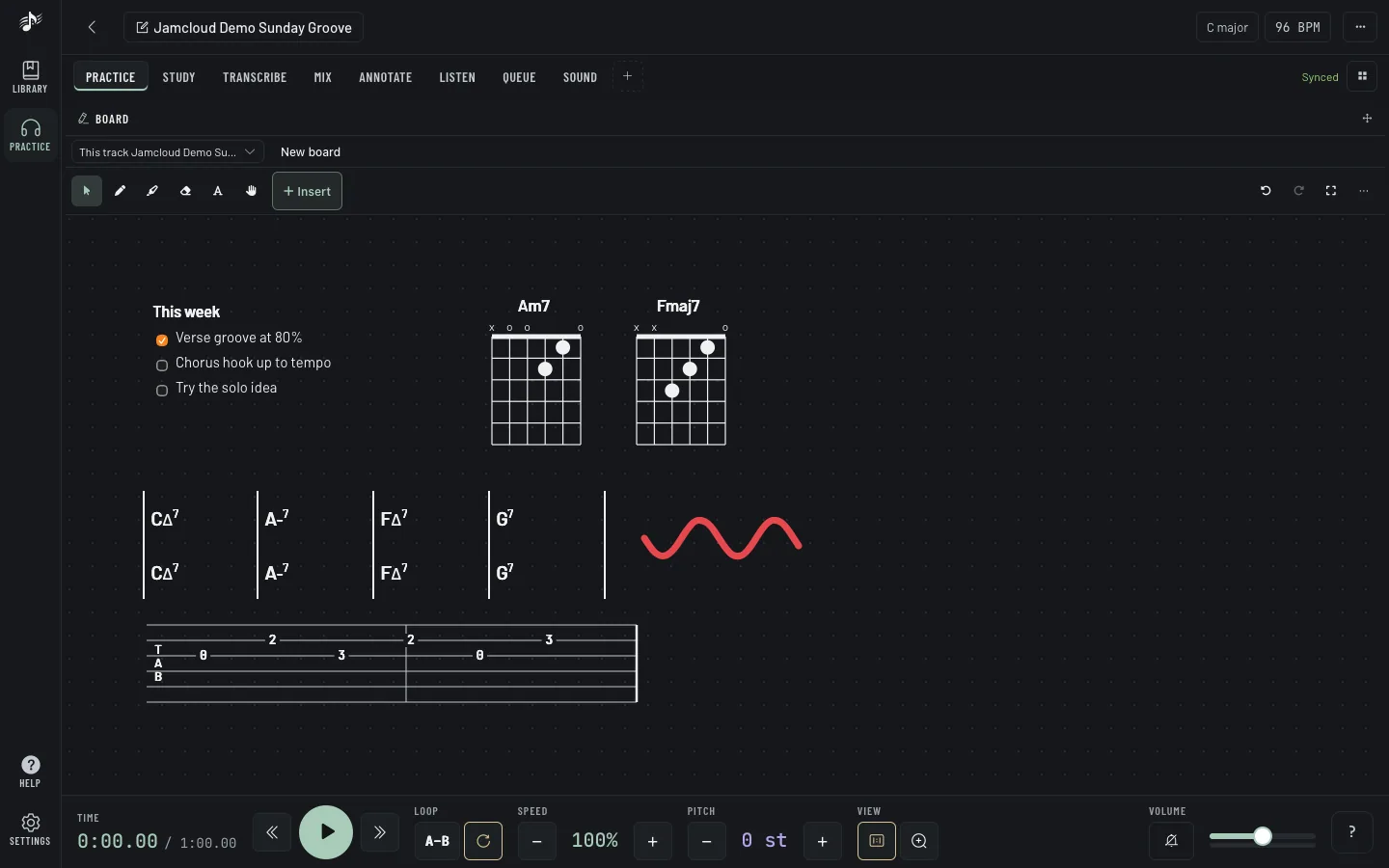
Everything sits in one row at the top: the board picker and its ⋯ menu (new board, rename, clear, delete), the drawing tools with one round button for the pen’s colour and width, then Insert, undo, redo and fit.
In a shared workspace, everyone sees the board change live. Members with Write access can draw on it; the owner can also let readers write, for a lesson. Undo only takes back your own changes.
Tip: Progression from this track drops the track’s chord grid onto its board.