Guide · 05
Practice
Loop, slow down, transpose, map the song, tune up and play in time.
The transport at the bottom of the Practice page is always there, whatever your layout: play, loop, Speed and Pitch. Changing the speed never changes the pitch, and the other way round. The follow button in the transport makes the waveform scroll with the play head; the round button in the bottom-left corner of the waveform zooms it in or out. Tap or click the time on the left of the transport to show the time left instead of the time played; tap again to go back. JamCloud remembers your choice on that device.
The Spectrogram and Tempo panels show the same stretch of the track as the waveform: they zoom, scroll and follow the play head together, so a beat lines up across them.


Loop and slow down
Section titled “Loop and slow down”- Drag across the waveform to select a passage: that is the loop. With repeat on (
L), it plays over and over. - The loop joins its end to its start with no gap, so the beat never stops. A short track (30 s or less, like a drum or brush loop) repeats the same way.
[and]set the loop start and end at the play head, in time with the music.- Save a loop to find it again in the Navigator panel next time.
- Snap to beat puts both ends exactly on a beat once the beats are known.
Tip: Slow down in 5% steps until the passage is clean, then speed back up one step at a time.
Map the song
Section titled “Map the song”- Markers are bookmarks: press
Mthe moment you hear the spot. - Sections (intro, verse, chorus…) show as coloured bands on the waveform. Add them yourself, or let Auto-detect sections propose them.
- Tempo holds the beat map behind the bar lines, the chord grid and the metronome’s sync. Fix it there when the bar lines are off.
- The Navigator panel lists markers, sections and loops together in time order. Filter by type with the tabs of its header row, add any of them from +, auto-detect sections, and go to, play, edit, extract or delete each row.
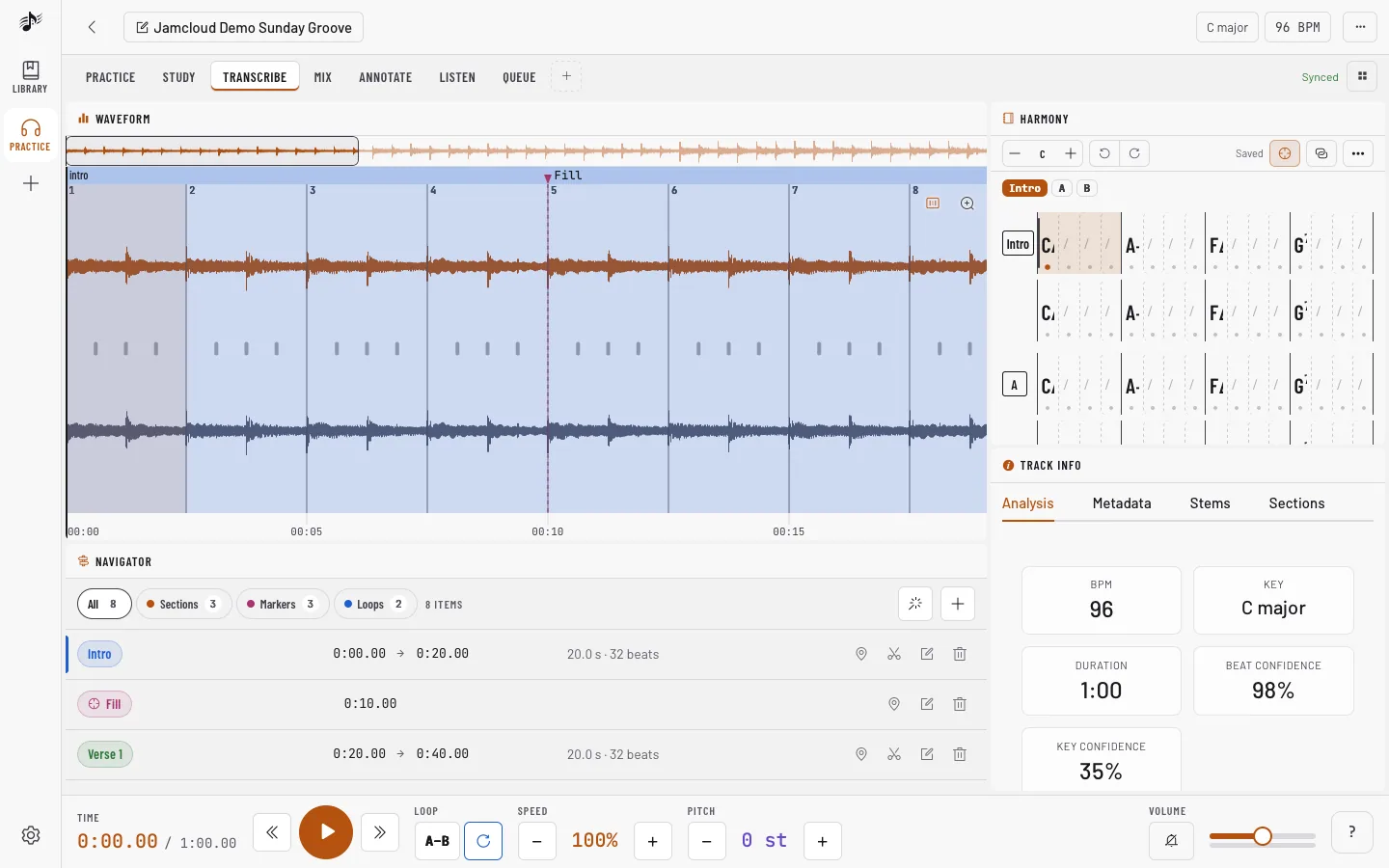
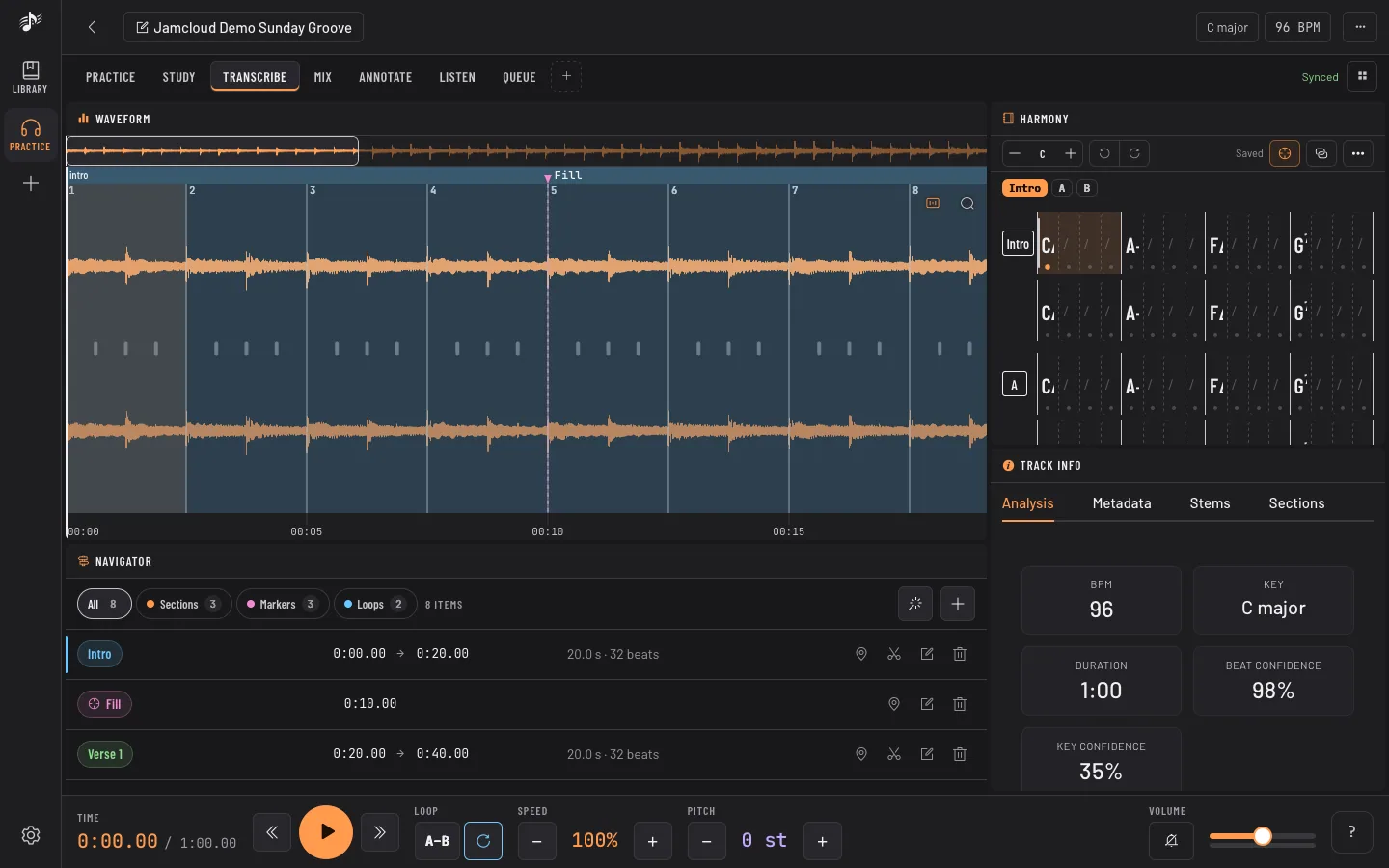
Everyone in a workspace sees the same loops, markers and sections.
Tuner and metronome
Section titled “Tuner and metronome”- Tuner listens through your microphone, with instrument tunings, a chromatic mode and your own tunings.
- Metronome has tap tempo, accents, subdivisions, polyrhythms and a library of rhythms from around the world. Sync makes it click on the track’s own beats, even when the tempo moves.
Both fit a small corner or a whole area.