Guide · 07
Sound and stems
Split a track into instruments to play along without your part, shape what you hear, and download the track.
Stem separation splits a recording into its instruments (vocals, drums, bass, guitar, piano, other). Mute your own part and play along with the band, or listen to the bass line alone.
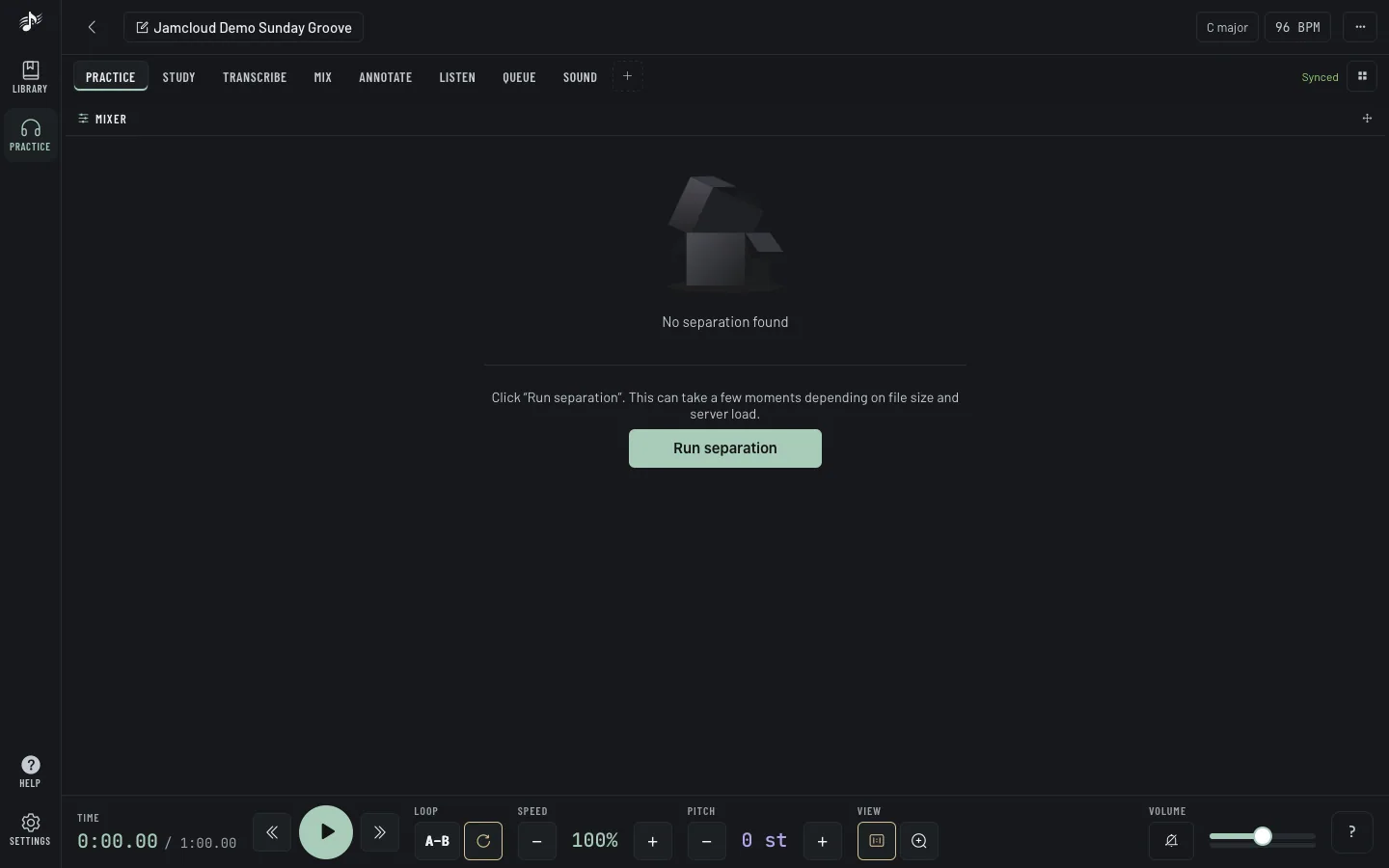
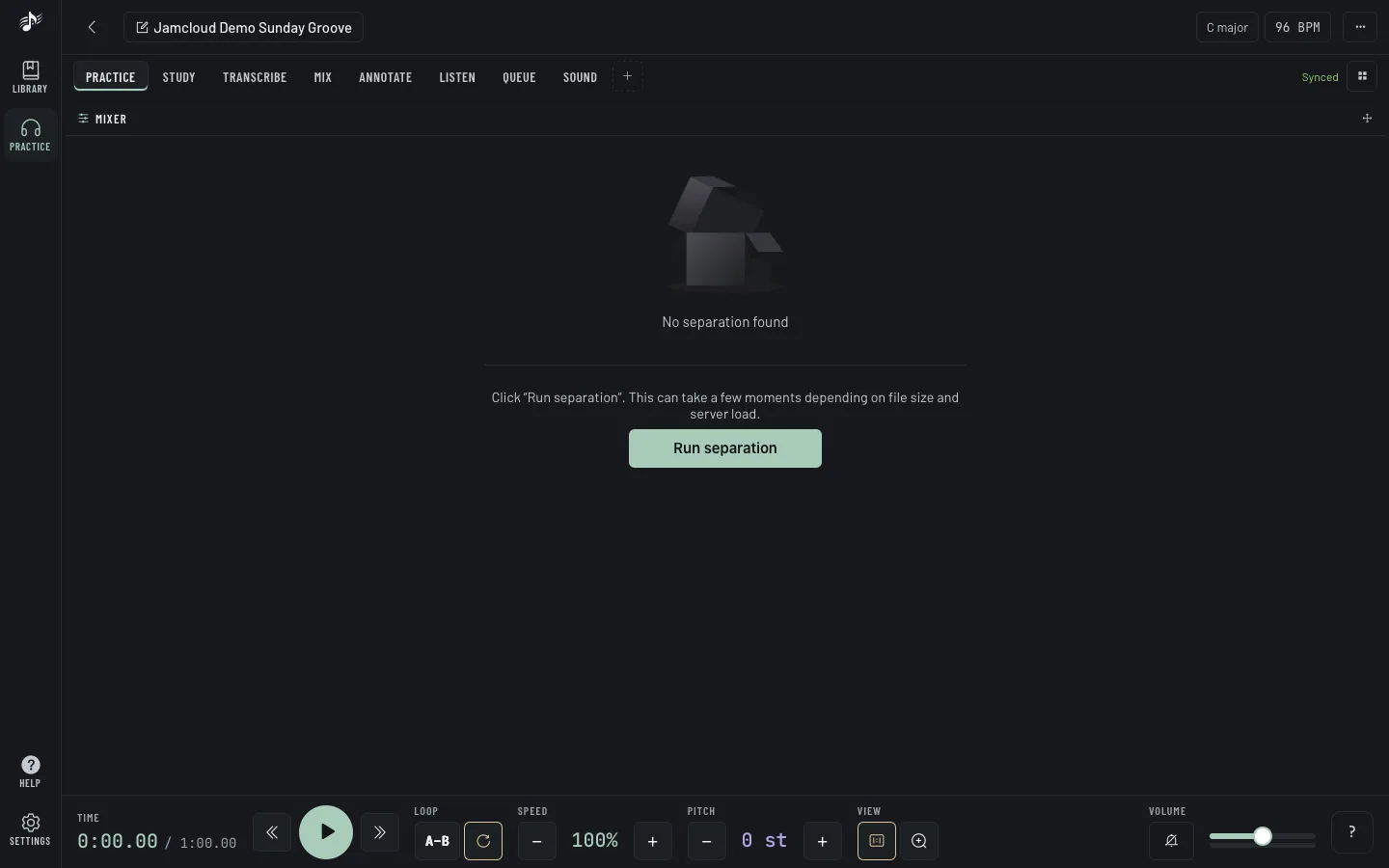
In the Mixer panel, choose a model and click Run separation. It takes a few minutes; keep practising meanwhile, JamCloud tells you when the stems are ready. If others are waiting, the panel shows your place in line and a rough wait, kept up to date; Leave the line withdraws the request. Once a track is separated, every member of the workspace can use its stems.
Then turn on Stems enabled: each stem gets a fader, a pan knob, M (mute) and S (solo). Your mix only changes what you hear.
Switching stems on or off takes a few seconds while the track is prepared again (playback pauses, then picks up where it was): to stay light on phones, only the stems are kept in memory while they are on.
Separations need Write access and count against the monthly allowance of the workspace owner’s plan.
The Sound panel is a small console between the track and your ears: equalizer, filters, compressor, stereo and a safety limiter. Simple shows just the equalizer; Advanced shows the whole chain. Save your settings as presets, and compare two of them with A / B.
It never changes the track itself, and other members don’t hear your settings.
Tip: Lower the equalizer around 250–500 Hz to clear a muddy mix, or raise 62–125 Hz to hear the bass line better.
Export
Section titled “Export”The Export panel (or Export file in Track actions) downloads the original file, or converts it to WAV, MP3, OGG/Opus, FLAC or AAC. When the track has stems, they come along in a ZIP. The file is prepared in the background: you can keep working, and a Download button appears when it is ready (the link works for 15 minutes). On iPhone and iPad, tap it to save the file.
Your work on the track
Section titled “Your work on the track”Tick Score, chord grid & analysis data to download everything you built on the track, with or without the audio (untick Audio for the data alone). You get one ZIP:
- the score or tabs as MusicXML (opens in MuseScore, Guitar Pro, Sibelius…), plus the original score file;
- the chord grid as played, as MusicXML;
- a MIDI tempo map: import it into your DAW so its grid follows the recording, with your sections and marks as markers;
- the beats and sections as CSV, and your sections, marks and loops as label files for Audacity or Reaper;
- the lyrics as an LRC file, and all the data in one JSON file. A
README.txtlists what is inside.